Project Photos
Your crew's site photos. One project gallery.
Keep renovation progress, deliveries, and work before it is covered with the right job. DailySite brings your team's project photos together on iPhone and Android.
What you can do with project photos.
DailySite is a construction photo app for small contractors and trades who need the whole crew's site photos under the right project. Use the shared project gallery, attach photos to daily reports, and keep progress records beside your estimates and invoices.
Everything you need
Built for how contractors actually work — fast, mobile, and in the field.
Capture or Upload on Site
Take a photo in the app or select images from your phone. Open the project first so the record stays with the right job.
Bring the Crew's Photos Together
Team members in the same company can add photos to shared projects. Starter and Pro both include unlimited team members.
Find Photos Under the Job
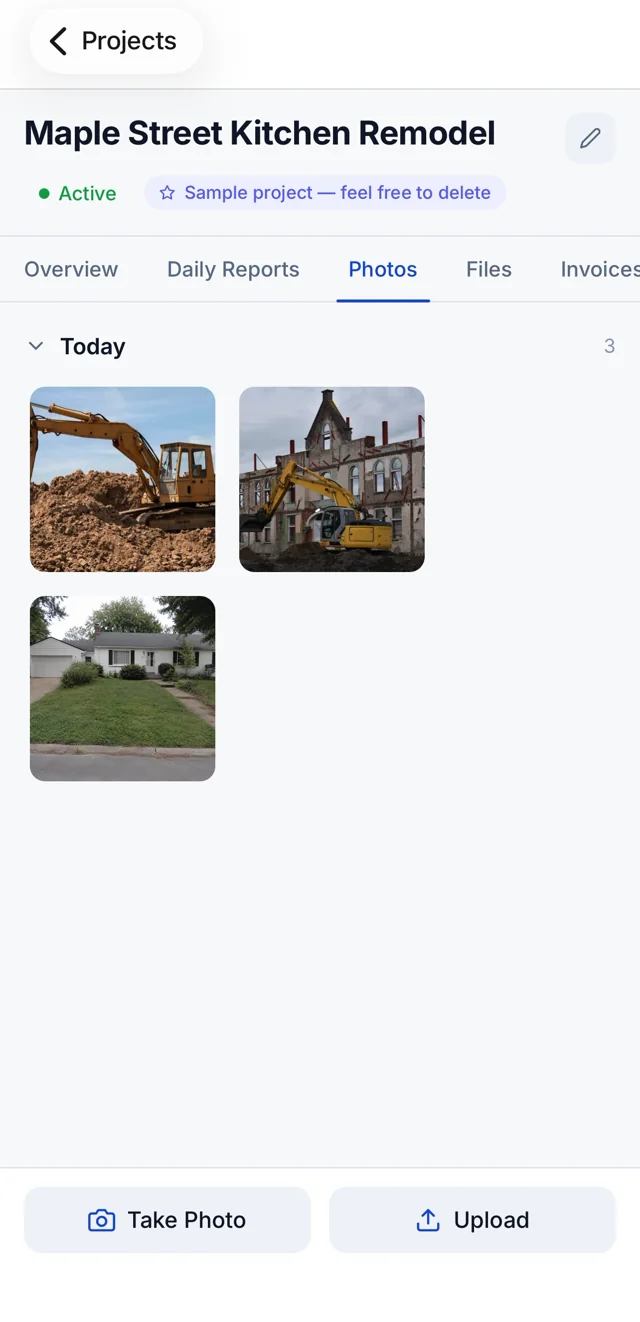
Open the project's Photos tab to review its gallery. Keep kitchen progress, a basement rough-in, and another client's delivery separate.
Add Context in Daily Reports
Attach relevant photos to the day's report and explain the location, work completed, and any decisions or follow-up work.
10 Photos Per Report on Starter
Starter plan supports up to 10 photos per daily report. Upgrade to Pro for unlimited photos per report.
Keep Clients Informed
Use your project photos and daily records when preparing a progress update for the owner or general contractor.
Secure Cloud Storage
Photos upload to your company's project records. An internet connection is needed; storage allowances are shared across the company.
Record Before, During, and After
Take a wide context shot and useful close-ups at each stage. Keep the images alongside the notes that explain what changed.
How it works
Simple enough to use from your truck before the crew shows up.
Open the project
Choose the job and open its Photos tab. Invite your crew to the same company so everyone works from the shared project records.
Capture the work
Take new photos or upload images from your phone. Start with the work area, then photograph details, deliveries, or concealed work.
Check the project gallery
Allow uploads to finish, then check the images are saved under the correct project. Other team members can find them in the same place.
Explain the day's progress
Attach relevant images to the daily report with a short explanation of the work. Keep estimates and invoices under the job for the next step.
A few things worth knowing.
Can different team members add photos to the same project?
Yes. Invite team members to your DailySite company using the join code. They can contribute to the same project's records. Both plans include unlimited team members; project and storage allowances are shared across the company.
Does DailySite work on both Android and iPhone?
Yes. Team members can use DailySite on iPhone and Android within the same company. Start a new company with a 14-day trial; no credit card is required.
Which job site photos should I keep?
Capture existing conditions, progress, concealed work before it is covered, deliveries, and issues. Take a wider context shot alongside close-ups so the location is clear later.
Why attach photos to the daily report?
A photo is easier to understand when it sits beside the day's work notes. Keep a short explanation of what it shows and why it matters to the project.
Are photos available without an internet connection?
Plan to use an internet connection to load project records and upload images. Wait for uploads to finish before relying on the shared gallery as your saved record.
Ready to get to work?
Free 14-day trial. No credit card required.